


Audit Week Shows Your Real Defaults
IT audit checklist for education work starts before auditors arrive. Audit week rarely fails because people ignored security. It fails because departments ran classes in different ways. One team used open links. Another used roster entry. One group kept recordings forever. Another deleted them quickly. Auditors notice the gaps.
If you want to prepare your online class system for internal audits, focus on repeatable controls. Standardize roles and entry. Treat recordings and transcripts as governed records. Enforce retention by artifact type. Lock exports to approved roles. Make evidence easy to pull in minutes.
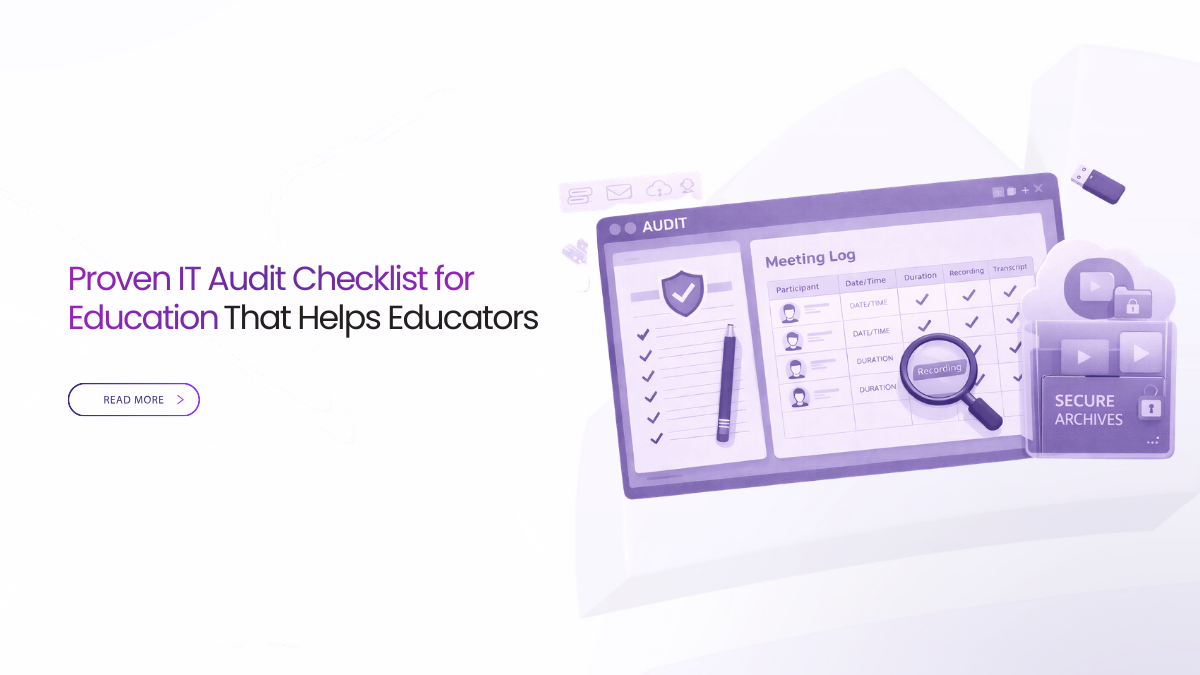
An IT audit checklist for education starts with one standard workflow. Lock entry to roles, and keep guests in a lobby. Treat recordings and transcripts as governed artifacts with retention. Export a small evidence packet with logs for joins, access, and downloads.
What Auditors Usually Test First
Auditors start with questions that sound simple. Who can join a class. Who can record. Where the replay goes. Who can export a file. If your answer is “it depends on the instructor,” you will get findings.
A good IT audit checklist for education keeps answers consistent. It also keeps teaching smooth. The best controls remove guesswork for faculty. They do not add steps.
IT Audit Checklist For Education Teams Can Prove
Here is the core idea behind an IT audit checklist for education. Auditors want policy, process, and proof. Policy is what you say should happen. Process is what staff do each week. Proof is what the system can show quickly.
If your audit prep focuses only on policy, you will struggle. If it focuses only on tools, you will struggle too. You need a simple operating model that works in every course.
Scope Your Online Class System
Online learning is a stack, not one tool. Auditors will scope the full workflow, not just the live class app. An IT audit checklist for education should start with a short inventory.
Keep the list small so teams will maintain it. Write down what each system stores and who can access it.
- LMS course pages, rosters, grades, and submissions
- Live sessions, join links, and attendance signals
- Chat, Q and A, and file sharing spaces
- Identity services, including SSO and guest access
- Storage and admin access for replays, transcripts, and support
Once you have the inventory, assign ownership. Decide where evidence should come from. Then you can stop chasing files across departments.
Lock Entry And Access To Real Roles
Access control is where audits get real. A strong IT audit checklist for education defines roles that match teaching. Keep the role set small so people remember it.
These roles show up in almost every course. They are easy to teach. They also make audits easier to pass.
- Instructor runs the class and controls recording and publishing
- TA or Producer moderates and manages participants
- Student participates and submits work
- Guest waits for approval and stays restricted
- Reviewer or Auditor exports evidence by approval
Tie each role to four areas. Entry, visibility, actions, and artifacts. This keeps access consistent across departments.
If you want a reference example, see role-based entry in online classes (internal).
Make Guest Handling Boring And Safe
Guest handling is a common audit weak spot. Guests arrive for panels, lectures, and external reviews. If guests join like students, they may see names, chat history, and files.
An IT audit checklist for education should include one default. Guests go to a lobby first. Staff admit them on purpose. Guests should not inherit student permissions.
This is not about being unfriendly. It is about making boundaries visible. Your physical campus has boundaries. Your online classrooms need them too.
Control High Impact Actions
Auditors focus on actions that change records. Recording, transcript export, file download, and permission changes are high impact.
A good IT audit checklist for education locks these actions to roles. Keep the rules easy to explain. Only instructors record. Only course staff publish. Only reviewers export for disputes and audits.
Start by locking the actions that create portable copies. These are the actions that turn a class into a file problem.
- Start or stop recording
- Enable or export transcripts
- Download replays or shared files
- Change sharing permissions
- Invite people mid-session
If these actions are open to everyone, governance collapses. A replay spreads. A transcript gets copied. Then the audit becomes painful.
Treat Recordings And Transcripts Like Records
Recordings and transcripts are the most portable artifacts. They can contain student names, voices, faces, and chat. They can also capture accidental screens, including grades.
This is where many audit findings appear. Teams treat these artifacts like convenience files. People email copies. People upload to personal drives. Then nobody can prove who saw what.
An IT audit checklist for education should define a clear lifecycle. Create, notice, publish, retain, export, and delete. Then enforce it through templates. Templates remove guesswork during busy weeks.
Keep Publishing Inside The LMS
Publishing is where good intentions create risk. A teacher wants to help a student. They send the replay in chat. Another teacher uploads it to a shared drive. Now you have copies everywhere.
A simple rule reduces this fast. Publish by link, not by file. Post one governed link in the LMS. Keep the replay and transcript behind that link. If access changes, update the source.
This also helps students. They always know where to find outcomes. That reduces side sharing.
Enforce Retention By Artifact Type
Retention is often the fastest path to an audit finding. Many policies say recordings are kept for one term. Then the system keeps them forever unless someone deletes them.
An IT audit checklist for education should treat retention as a control, not a reminder. Decide a small set of artifact types. Then set retention windows that match academic need.
Lectures may need one window. Exam reviews may need another. Office hours may need a shorter window. The point is consistency.
Also decide how deletion works. Who can delete. What approvals are needed for exceptions. How exceptions are logged.
Keep Settings Consistent Across Departments
Auditors hate “special cases” that nobody can explain. The easiest fix is to use templates. Templates lock entry, recording rules, publishing, and retention into repeatable defaults.
Keep the template set small. Most campuses can cover most teaching with three templates. Lecture, seminar, and assessment briefing.
Change control matters too. Do not change defaults during midterms. Update templates between teaching blocks. Communicate changes in one page. This keeps classes predictable and keeps audit evidence clean.
Prove Controls With Logs, Not Memory
Auditors do not want stories. They want evidence. An IT audit checklist for education should include a minimum evidence bundle you can export quickly.
Keep evidence small so teams can pull it fast. If evidence takes days, staff will avoid it.
A compact bundle can include:
- Session identity, including course, section, and date
- Role assignments and lobby admits for the session
- Recording status and who started it
- Replay and transcript access events where available
- Export activity, sharing changes, and retention status
When you can pull this in minutes, audits become calm. Disputes become easier to resolve.
Map Your Checklist To A Control Reference
You do not need to copy a full control catalog into your audit deck. Still, it helps to map your checklist to a known reference. It gives your audit team shared language.
If you need a place to start, use NIST SP 800-53A assessment guidance. It helps teams assess controls in a repeatable way.
In education, the mapping often lands in a few families. Access control. Audit logs. Configuration change control. Incident response. Your IT audit checklist for education can stay short while still mapping cleanly.
Define Vendor Support Boundaries
Auditors will ask how vendor support access works. They will also ask how integrations handle student data. Many incidents start here, not in the classroom.
Your IT audit checklist for education should answer five vendor questions in plain language. Keep the answers written and easy to find.
- What data is collected and which parts are optional
- Where data is stored and where processing happens
- Who can access content, including vendor support
- How retention and deletion work, including backups
- What evidence you can obtain after an incident
Keep support access separate from course content access when you can. Require approvals for deep access. Log the activity.
Test Your Audit Drill In One Real Course
Do not wait for audit week to test evidence. Pick one course with normal activity. Run a short drill.
Start a session using the standard join path. Record a short segment. Publish the replay link in the LMS. Then export the evidence bundle. Check retention settings. Confirm who can export.
This single drill often finds most issues. It also gives your teams confidence. It turns audit readiness into a routine.
Watch Signals That Predict Audit Pain
Audit findings often show up after staff start using workarounds. Workarounds happen when the system feels unreliable. Forwarded links, personal uploads, and ad hoc exports appear.
Track a few operational signals that reveal drift. These signals are easy to explain in meetings.
Join success rate matters. Low success drives link sharing. End-to-publish time matters. Slow publishing drives file sharing outside the LMS. Export frequency matters. Rising exports can signal weak defaults.
When these signals stay healthy, your IT audit checklist for education stays easy to defend. When they slip, fix the defaults early.
How Convay Helps
Audit readiness improves when evidence is produced by the system, not by instructors. Convay supports role-based access control and audit trails that can help separate instructor actions from student actions. It also supports configurable retention controls, which helps enforce retention by artifact type.
Convay can support a reviewer workflow for sensitive actions, so exports and deletions can follow approval rules. Used with clear templates, these controls make it easier to keep processes consistent across departments.
Make Audit Readiness Your Normal Mode
Internal audits should not force teaching teams into a special mode. The goal of an IT audit checklist for education is to make governance feel normal.
Start with roles and entry rules that never change. Treat recordings and transcripts as governed records. Publish through the LMS by link. Enforce retention by artifact type. Keep logs ready for evidence.
If you do those basics, audit week becomes a short review. It stops being a fire drill.
Faqs
What do IT auditors usually check first for online classes?
They start with simple questions: who can join, who can record, where recordings go, who can download, and who can change settings. If your answer is “it depends on the instructor,” you will likely get audit findings.
What evidence should we prepare for an education IT audit?
Keep a small evidence packet per class session: who joined (and who was admitted from the lobby), who recorded, where the replay and transcript were published, who accessed or exported them, and what retention rule applied.
How can we stop different departments from running classes in different ways?
Use one standard workflow and a few templates. For example: lecture, seminar, and assessment. Templates should lock entry rules, guest handling, recording rules, publishing to the LMS, and retention so every course behaves the same.
What are the safest default rules for guests during audit week?
Send all guests to a lobby first. Staff admit them on purpose. Guests should not see everything students see by default, like full participant lists, chat history, or shared files.
How do we handle recordings and transcripts so audits don’t turn into a fire drill?
Treat them like records, not convenience files. Publish one governed link in the LMS (not file copies in chat), enforce retention by artifact type, and limit exports to approved roles with logs. If you use a platform like Convay, these controls are easier to keep consistent across departments through role-based access and audit trails.