


When Entry Rules Decide Trust
Access control of online classroom shows up in the first minute. A class either feels safe and orderly, or it feels open and uncertain. If the wrong people enter, students lose focus fast. If recording and downloads are open to everyone, trust breaks even faster.
Most institutions already have policies. The gap is the daily workflow. You need roles, defaults, and logs that behave the same way for every instructor and every course.
Access control of online classroom works when entry, actions, and class files follow simple roles. Staff use the normal campus login, students join from the roster, and guests wait in a lobby. Only approved roles can record, export, or publish. Post one replay link in the LMS and keep logs for review.
Most campuses publish outcomes in a learning management system, often called an LMS.
What Online Classroom Access Control Means
Online classroom access control is a simple promise. The right people can join, at the right time, with the right permissions. Everyone else is delayed, limited, or blocked.
In practice, access rules have three layers. Entry is who can get into the room and how they prove identity. Visibility is what each role can see once inside. Actions are what each role can do, especially the risky actions.
If you only manage entry, you can still leak data. If you only manage actions, you can still get unwanted visitors. Access control of online classroom works when all three layers match how teaching actually runs.
Why Access Rules Drift During Busy Weeks
Most access problems are not malicious. They happen when people are rushing. A guest speaker arrives late. A TA changes mid-term. A student forwards the link in a group chat.
Then shortcuts become habits. Someone re-uploads a replay to a personal drive. Someone creates a new link to avoid questions. Someone relaxes permissions to quiet the room.
The fix is not more rules. The fix is fewer, clearer defaults. When the safe path is easier than the workaround, people stop routing around your controls.
Access Control Of Online Classroom Roles
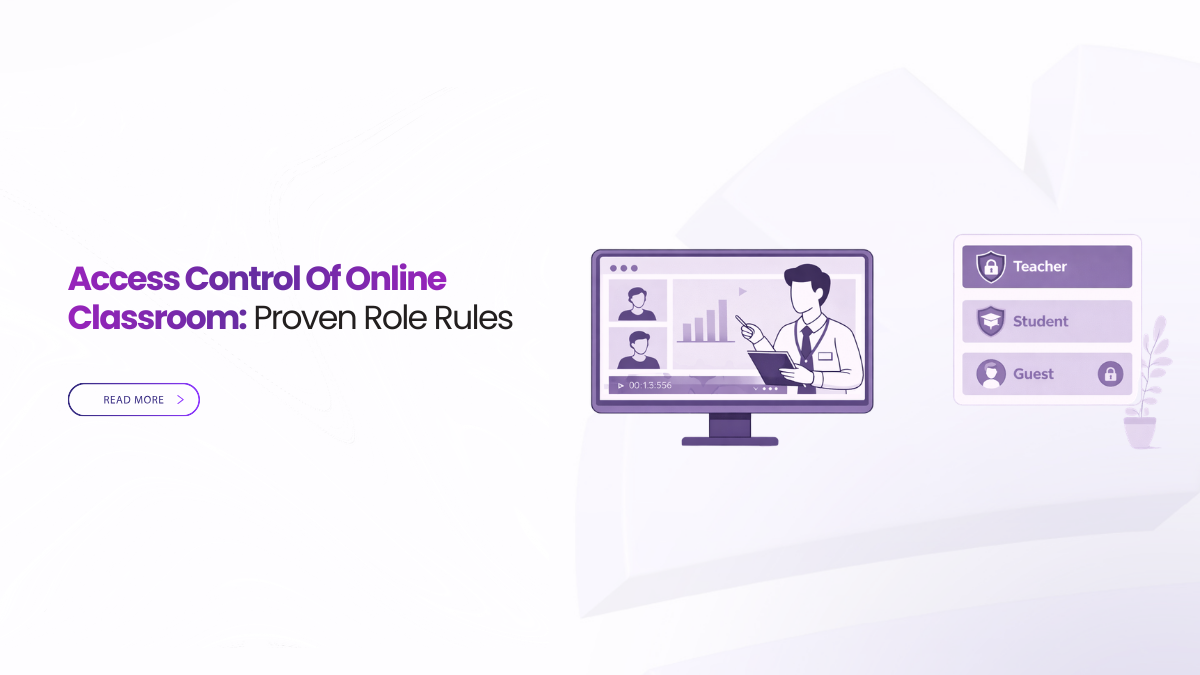
Role-based entry works because it matches real teaching. It also scales because roles stay stable even when people change. Access control of online classroom gets easier when the role set is small and easy to remember.
Most courses run well with five roles.
Instructor runs the class and owns course outcomes. Teaching Assistant manages flow and moderation. Student participates and submits work. Guest is restricted and admitted on purpose. Reviewer handles exports and evidence when approved.
When you name roles clearly, staff stop guessing. Students stop seeing mixed signals. The class starts to feel predictable.
Lock The High-Risk Actions First
Not every setting needs a debate. Start with the actions that create lasting files or wide exposure. If an action makes copying easier, it should be role-limited. That is the fastest way to tighten access control of online classroom.
Here are the high-risk actions most campuses should lock to roles.
- Start or stop recording
- Enable or export transcripts
- Download replays or files
- Change who can share screens
- Invite people mid-session
Keep the list short. Then enforce it through templates. Templates do the remembering when weeks get busy.
Make Entry Predictable For Staff, Students, And Guests
Entry is where most classes lose time. Your join path should have three lanes.
Staff join with the same campus account they already use. Students join through the course roster or the LMS. Guests land in a lobby and wait for approval.
Put the join steps in the syllabus header. Keep it the same for every class. When entry is consistent, students stop guessing and support tickets drop.
Keep Guests Restricted Without Being Rude
Guest speakers and observers are normal in education. The goal is not to block them. The goal is to control what they can see and do.
A guest should not arrive as a peer by default. A guest should wait in a lobby. A TA or instructor should admit them on purpose. After entry, the guest should have limited visibility of student details unless teaching requires it.
This matters because even basic classroom screens can reveal names and other identifiers. Treat the participant list and chat as part of the student data trail.
Control The Four Doors That Leak Data
A join link is only one door. Many privacy and integrity issues come from the doors people forget. Access control of online classroom is stronger when you control four doors together.
Entry is who joins and when. Visibility is what each role sees. Actions are what each role can do. Class files are what can be recorded, downloaded, and exported.
If any one door is open by default, people will route through it. A locked room can still produce uncontrolled files.
Keep Visibility Simple And Safe
Visibility is not only about joining. It is also about what names, chat, and files are visible to each role. Start with the least exposure that still supports learning.
Students should see what they need to participate. Guests should see only what they need to contribute. Reviewers should see evidence by approval, not by default.
Decide what gets saved and who can see it later. Decide whether guests can view participant lists. Decide whether chat history is visible after class. These small defaults prevent many accidental leaks.
Govern Recordings And Transcripts Like Real Records
Recording is more than a button. It creates a file that can outlive the class. It can become searchable when transcripts exist. That changes the stakes.
Access control of online classroom should answer five questions. Who can start recording. Who can stop it. Who can view the replay. Who can download it. Who can export or share the transcript.
A safe pattern is simple. Only instructors or approved staff can record. Students cannot export governed class files by default. Replays are shared by one LMS link, not by sending files.
Publish By Link To Stop Sprawl
Most leaks grow after class. A teacher wants to help a student. They send a file in chat. They email a copy. They upload it to a personal drive. Now you have multiple versions and no clear source.
Publishing by link fixes this. Post one governed link in the LMS. Keep the replay and transcript behind that link. If someone needs access, change permissions on the source, not on a copied file.
This also helps students. They always know where to find outcomes. They stop asking for copies that create risk.
Retention Turns Policy Into Reality
Many policies say recordings are kept for a set time. That only works if the system enforces it. Access control of online classroom should include retention by class file type.
A lecture replay may need one window. An exam review may need another. Advising sessions may need a shorter window. Start with three to five types and choose windows you can defend.
Then apply those rules through templates. Templates reduce drift because they remove guesswork during busy weeks. Retention also reduces reuse disputes, because old files expire by design.
Prove Access With Logs, Not Memory
When something goes wrong, teams often rely on screenshots and guesses. That is where governance collapses. Good access control produces evidence automatically.
You should be able to answer simple questions quickly. Who joined. Who was admitted from the lobby. Who started recording. Who downloaded or exported anything. Who changed permissions.
Evidence should be easy to export and easy to read. Keep the bundle short so people use it.
A compact evidence bundle can include:
- Session identity and time window
- Active roles and who held them
- Recording state and start time
- Replay and transcript access events
- Retention status and deletion status
When logs are easy, staff stop making shadow copies just in case. That reduces duplication and reduces exposure.
Watch Signals That Reveal Permission Drift
You do not need a complex scorecard. You need a few signals that show when the safe path is failing.
If join success drops, students will share links. If the class starts slowly, teachers will improvise. If publishing is delayed, staff will share files outside the LMS. If export events rise, defaults are too loose.
Review these signals weekly during the term. Fix drift early. Your access rules improve when changes are deliberate, not reactive.
A Simple Rollout You Can Do This Term
You can improve access control of online classroom without rewriting your whole program. Start with roles and entry lanes. Then lock high-risk actions to roles. Then move publishing to one LMS link. Finally, review export activity and adjust.
Keep the rollout light. Give faculty one page. Give TAs a short script for admitting guests and managing chat. Make the safe path easy, then reuse it across courses.
How Convay Helps
Convay documentation describes role-based access controls and audit-focused administration features. These help institutions separate instructor and TA powers from student actions. Convay documentation also describes audit trails and configurable retention controls that support review workflows.
Convay documentation also describes lobby-style guest handling and transcription features. That can help course teams keep class files controlled and publish outcomes through the LMS instead of sharing files. Used with clear templates, these controls support access control of online classroom without adding daily friction for teachers.
FAQs About Access Control Of Online Classroom
What does access control of online classroom mean in plain terms?
It means the class decides who can enter, what they can see, and what they can do.
How do we stop unknown people from joining?
Use roster-based student entry and send non-rostered users to a lobby by default.
Who should be allowed to record or export?
Limit those actions to instructors and approved staff roles, then review logs after.
What should we log for audits?
Log joins, lobby admits, recording starts, exports, and permission changes.
How do we prevent permission drift during busy weeks?
Use templates with the same roles each time and review export activity regularly.
Make The Safe Path The Default
Access control of online classroom works best when it feels boring. Students join the same way each time. Guests wait in a lobby. Recording and exports stay with approved roles. Outcomes publish to the LMS by link, not by file.
Set these defaults once, then reuse them. When defaults are stable, privacy becomes quiet again. Teaching becomes the focus.