Start With Operations, Not Tools
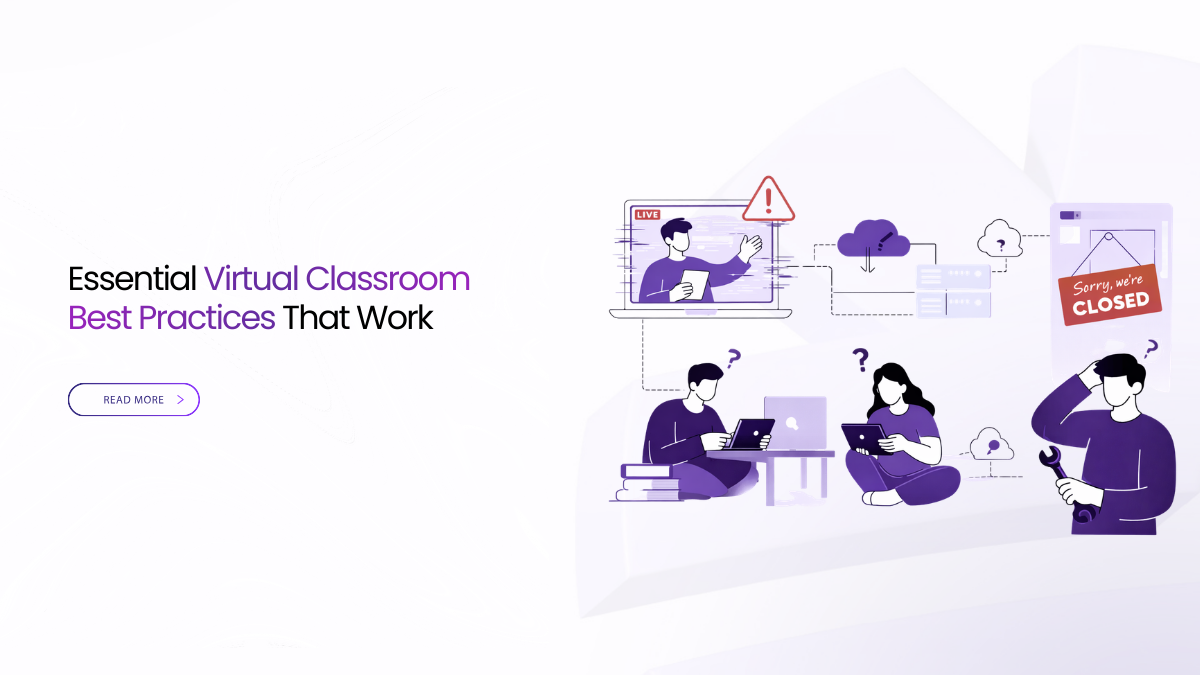
Most online class failures are not technical. They are operational. Students get a confusing invite. Joining forces an install. Roles are unclear. Shared content is unreadable. Or the replay never reaches the course module.
Virtual classroom best practices stop classes from starting late and ending without outcomes. Standardize one browser join, simple roles, readable sharing, and audio-first settings for every course. Record with clear notices, enable live transcripts, and publish one replay link in the LMS.
When virtual classroom best practices are written down and trained once, classes feel calmer. Teachers teach. Students follow. Support teams stop firefighting.
Virtual Classroom Best Practices That Prevent Daily Chaos
If you have watched a lecture turn into “Can you hear me” or “Where is the link,” you have seen risk live. The fix is not buying more tools. The fix is standardizing a small set of behaviors. Use the same join every time. Use the same role map. Use the same recording rules. Use the same publishing path. Use the same way to get help.
These virtual classroom best practices remove guesswork during busy weeks.
Define Operational Risk In Online Teaching
Operational risk is anything that makes a scheduled class start late, run poorly, or fail to publish outcomes. In practice, it includes invite clarity, identity checks, join steps, classroom control, recording rules, publishing to the LMS, and a fast path to help.
Write those items as a one page standard. If a help desk agent can follow it, risk drops across the term.
Timetable And Identity Keep Classes On The Rails
Confusion starts where students first look. That is the timetable or the LMS. A class link should live in one place and read the same way every week. It should honor the roster.
Staff should use SSO with your normal sign in rules. Students should join from the course roster when possible. Guests should start in a lobby and enter only when admitted.
This is one of the most practical virtual classroom best practices, because it saves time.
Join Patterns Students Understand Instantly
Joining must take less than a minute, even on shared devices. Avoid plug ins and forced installs. Avoid a device picker maze. Use a clean browser permission prompt and a visible audio meter before entry.
Standardize the join copy in invites and keep it consistent. For example, “Join in your browser. Allow mic and camera when prompted.” Make it a template for every course.
A consistent join pattern is a core part of virtual classroom best practices.
Roles And Classroom Control That Survive Busy Weeks
Roles prevent chaos. Keep them short and explainable. Use Instructor, Teaching Assistant, Student, and Guest. Add one back office role for exports and deletions. Call it Reviewer.
Map roles to directory groups so staffing changes do not create risk. With this model, assistants can manage entry and mute controls while teaching continues.
Clear roles are virtual classroom best practices that protect time and trust.
Screen Sharing Students Can Read
Most quality complaints are readability complaints. Teach one habit. Share a single app window, not the full desktop. This keeps text crisp and reduces notification leaks.
Ask instructors to zoom in on dense material. Ask them to keep the cursor steady while explaining. When the share is readable on a small laptop, comprehension improves.
Readable sharing is one of the simplest virtual classroom best practices, and it pays back fast.
Audio Reliability That Protects Comprehension
Brains forgive soft video. They do not forgive broken sentences. Favor settings and habits that protect speech under normal Wi Fi loss.
Give presenters guidance they will remember. Use a headset while lecturing. Mute when not speaking. Check the audio meter before beginning. Let the video adapt if it must.
Audio first habits belong in every list of virtual classroom best practices.
Bandwidth Aware Delivery For Real Homes And Dorms
Not every learner has a strong connection. Design for average networks. Use low bandwidth options that reduce video load before touching audio. Share one window instead of an entire desktop. Keep motion low when possible.
Encourage students on weak connections to turn off self view while listening. For visual courses, publish lighter slide decks beside the replay link.
These virtual classroom best practices reduce support tickets for remote cohorts.
Recording And Catch Up Without Rework
Missed classes happen. Rework should not. Make the recording rule clear before the term begins. Decide which class types are recorded and which are not. Apply the same setting every time.
Students need predictable access after class. Publish one replay link inside the LMS module. Do not scatter files across chat and email. Keep names consistent so people can find the right session.
Predictable capture and publishing are virtual classroom best practices that cut repeat questions.
Live Transcripts And Meeting Subtitles For Fast Review
Live transcripts help in noisy homes and multilingual classes. They also help students scan what they missed. If your platform supports meeting subtitles or live transcription, keep it easy to turn on.
After class, store the transcript with the session artifact when possible. Make it readable with speaker labels and timestamps. Assign someone to handle needed edits.
Transcripts and subtitles are virtual classroom best practices that help learners review fast.
LMS Workflows Where Learning Actually Lives
If the meeting tool and the LMS disagree, the LMS wins. So make them agree. At minimum, the course module should contain the join link and the replay link in the same place, every week.
Grades stay in the LMS. Attendance maps to the roster. Notes should point back to the transcript where possible. This is how virtual classroom best practices become a real archive.
Communication Playbooks For Faculty And Students
A quiet campus is a trained campus. Keep training short and repeatable.
Give instructors a three slide playbook they can reuse. Cover how to start, how to share, and how to publish. Add what to do when audio drops.
Give students a one slide checklist. Join in the browser. Check the audio meter. Use chat for questions. Find replays in the LMS module.
Training belongs in virtual classroom best practices because it reduces daily friction.
Assessments And Exam Windows Without Drama
Assessment time magnifies small gaps. Tie identity to the roster. Restrict late entry during timed tasks. Publish the rules before the window begins, then repeat them right before you start.
Some institutions avoid recording during oral evaluations. If you do that, create an assessment template and document it. If you use proctoring, test the integration weeks before midterms, not the night before.
Predictable assessment flow is a serious piece of virtual classroom best practices.
Support Workflow And Incident Response That Scale
Support should match how classes fail. Join confusion. Unreadable share. Broken audio. Missing replay.
Create short canned responses that point to one help page. Give teaching assistants a simple stabilize script. Pause. Mute all. Re-invite the speaker. Switch to low bandwidth mode. Resume.
After class, attach a short incident note to the session. Over a term, those notes show where defaults need work.
Support routines belong in virtual classroom best practices because they protect teaching time.
Metrics That Warn You Early
Dashboards get noisy fast. Leaders feel a handful of signals. Track join success rate. Track time to first audio. Track speech stability under loss. Track transcript availability. Track the time from end of class to replay publishing.
Review trends weekly by department. A dip in join success often means identity or invite issues. Long publish times often mean workflow problems.
Operational signals are virtual classroom best practices for leaders, not just IT.
Buyer Checklist For Academic Leads And IT
Before you compare tools, keep one rule. Choose criteria teachers feel and auditors can verify. Then ask for live proof.
Join simplicity should be real. One click browser join, clean permission prompts, and a lobby for guests.
Roles and identity should be explainable. SSO for staff, rostered entry for students, simple roles, and a separate reviewer role.
Readable sharing should be testable. App window sharing, crisp text, and safe sharing that limits leaks.
Audio should stay first. Fast time to first audio and stable speech on normal Wi Fi.
Recording and transcripts should be predictable. Clear recording controls, meeting subtitles, post meeting transcripts, and one replay link placed in the LMS.
If a vendor cannot show these behaviors live, treat the gap as a risk.
How Convay Turns Virtual Classroom Best Practices Into Defaults
Convay includes features that help teams keep operational routines consistent. It supports web based access, cross platform clients, and conferencing controls like lobby mode and mute controls. It also supports breakout rooms, screen sharing by tab or window, and annotation tools.
For catch up, Convay supports local and cloud recording. Recordings can be accessed in meeting management, where hosts can copy a recording URL, download, or delete it. Convay also supports live transcription and post meeting transcripts, including Bangla and English options.
For structured follow up, Convay AI features include AI generated meeting minutes and customizable meeting minutes templates. It also lists meeting subtitles as a supported feature.
When these features are used with templates, virtual classroom best practices become repeatable across departments.
Keep Operations Simple, And Classes Stay On Track
Most failures in live classes are operational. Invites are confusing. Identity is messy. Sharing is unreadable. Audio habits are weak. Publishing is inconsistent.
Standardize a handful of behaviors. Keep one join path. Keep simple roles. Protect audio first. Share readable windows. Use recording and transcripts with clear rules. Post one replay link in the LMS module every time.
When you apply virtual classroom best practices as defaults, the term runs quietly. It starts on time. It stays teachable. It leaves a clean record.
FAQs About Virtual Classroom Best Practices
Why do most online classes fail even when the platform works?
Because the process is messy. Students get the wrong link. Joining has too many steps. Roles are unclear. No one knows what to do when audio drops. Virtual classroom best practices reduce these failures by standardizing the routine.
How do we stop “where is the link” messages every week?
Keep the class link in one place, the timetable or LMS. Use the same link and the same join instructions each week. This is one of the easiest virtual classroom best practices to enforce.
What join setup reduces late entry and tech panic?
Use browser join so students do not need installs. Show a simple mic and camera prompt and an audio meter before entry. Send non rostered guests to a lobby first.
How do we prevent audio issues without buying new equipment?
Make audio the priority, not video. Tell teachers to use a headset, mute when not speaking, and check the audio meter before starting. These virtual classroom best practices work on normal networks.
How can we make sure recordings and transcripts reach the LMS?
Use one rule. After every class, publish one replay link inside the LMS module. Keep naming consistent. If your tool supports transcripts, store or attach them with the session artifact.