
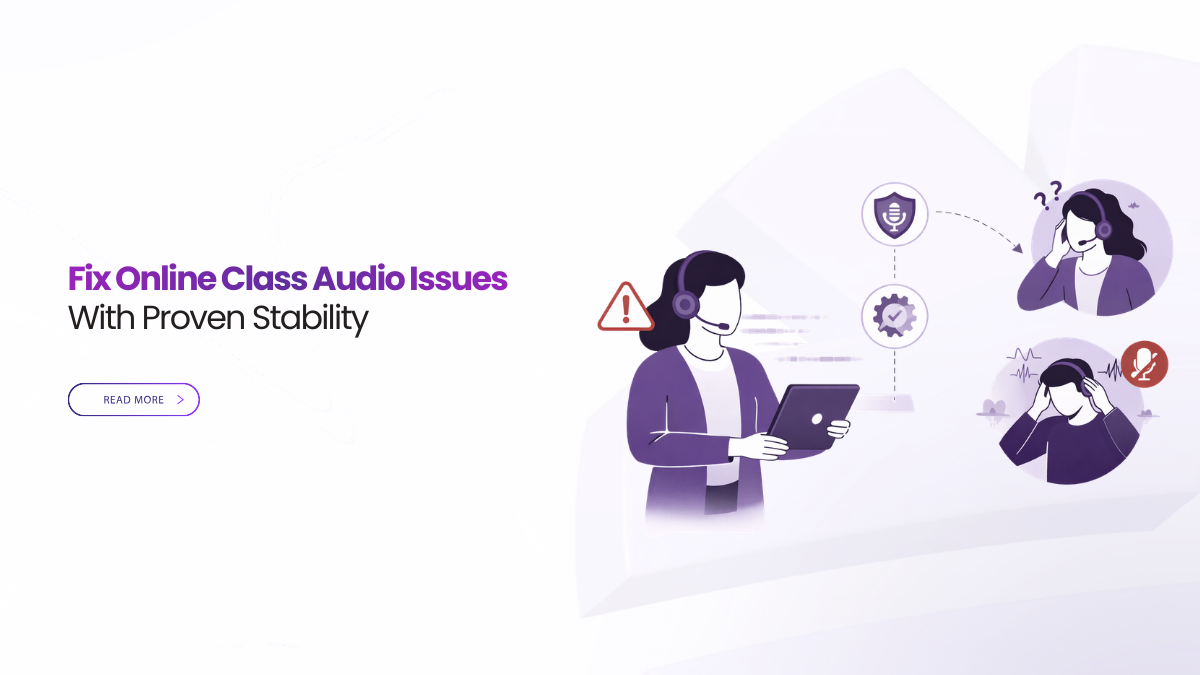
Stability Beats Quick Fixes in Live Classes
Online class audio issues are usually predictable. They start with joins that confuse students. They also come from video settings that steal bandwidth from speech. Fix those two, and classes feel calmer.
To prevent online class audio issues, standardize the first minute and the last ten minutes. The first minute is join, device check, and clear recording notice. The last ten minutes is publish, locate, and prove the outcomes.
Online class audio issues drop when the join is simple and audio comes first. Use browser join with an audio meter, then let video soften before speech breaks. Share one window, record with clear notice, and post one replay link and transcript in the LMS.
Online Class Audio Issues Start With Join Defaults
If the join fails, nothing else matters. Joining should take under a minute on shared devices. Online class audio issues often begin when students rush, click the wrong thing, and miss permissions.
Use one click from the timetable or LMS. Keep a single permission prompt for mic and camera. Avoid forced installs for students. When you can, keep a browser join option as the default.
Add a visible audio check before entry. It helps instructors and students confirm their input fast. Many classroom audio failures are just muted permissions or the wrong device selection. Clear permission prompts and simple browser settings reduce those failures.
Keep the invite text consistent across courses. Put it in templates, not in memory. Students should see the same line every week, in the same place.
Protect Speech Before Video
Speech is the lesson. Video is support. Online class audio issues rise when video tries to stay perfect. A stable setup protects voice first, then lets video adapt.
Look for layered media behavior. Under low bandwidth, the platform should reduce video detail before speech degrades. Teams documents describe this general design goal, where audio is prioritized when bandwidth is insufficient.
Give faculty habits that work everywhere. Ask them to use a headset when possible. Ask them to mute when not speaking. Ask them to check the meter before class starts. These habits reduce online class audio issues more than advanced menus.
When audio still drops, take one simple step first. Refresh and rejoin. Many platforms and learning portals list reload as a common first fix for audio problems.
Make Sharing Readable On Any Laptop
Most complaints about “quality” are really readability complaints. Students will accept soft camera tiles. They will not accept unreadable slides or code.
Train instructors to share one app window, not the full desktop. This keeps text crisp and reduces bitrate spikes. It also reduces notification leaks. When sharing is steady, online class audio issues drop too, because students stop asking for repeats.
Aim for a readable window share and calm pointer movement. Teach intentional zoom on dense areas. Pause on key screens. Clarity beats motion in learning.
Reduce Dropouts With Light Client Habits
Dropouts often follow audio trouble. Students disconnect when they cannot follow. They also disconnect when devices overheat or run out of battery.
Keep the student experience light. Encourage students on weak connections to turn off self view. If the class is large, keep most student cameras off by default. That protects speech for everyone.
Share a one slide student checklist in week one. Keep it short. Ask students to close heavy tabs, avoid downloads during class, and use wired headphones if they have them.
Also keep software current. Old browsers and old apps cause avoidable problems. If students use a browser join, tell them which browser your platform supports best. Many education platforms recommend a supported browser to reduce media issues.
Keep The Network Path Predictable
Wi Fi is not one thing. It is a mix of distance, interference, and congestion. Online class audio issues spike when students sit in dead zones.
Give staff and students a simple network guide. For home learning, choosing between 2.4 GHz and 5 GHz can improve stability depending on range and congestion. Microsoft guidance outlines the tradeoffs and recommends checking for dead spots and congestion.
For staff rooms, use wired connections where you can. If you cannot, keep the presenter near the access point. Avoid running large uploads during class.
If you have IT support, monitor trends, not one off complaints. Call quality monitoring guidance often focuses on audio because audio fixes improve the rest of the experience.
Use Roles That Prevent Restarts
Permissions are part of stability. Online class audio issues get worse when the room becomes chaotic. Chaos causes people to talk over each other. It also causes hosts to restart sessions.
Keep roles short and repeatable. Use Instructor, Teaching Assistant, Student, and Guest. Put guests in a lobby by default. Add a separate Reviewer role for exports and deletions.
Map roles to directory groups when possible. This reduces mistakes after staff changes. It also makes support easier during exam weeks.
Give the TA clear controls. They need mute all, spotlight, and share lock. These controls prevent noise storms that can feel like audio failure.
Keep Classes Light To Avoid Crashes
Session crashes are often a margin problem. Heavy effects, high motion video, and too many tiles consume CPU and bandwidth. Then audio suffers first.
Use lightweight defaults for teaching. Turn off nonessential effects. Keep backgrounds simple. Limit high motion layouts in large classes. Use moderated Q and A instead of unbounded chat.
If you need polls, keep them light. Use one question at a time. Avoid stacking tools that fight for the same bandwidth.
When defaults are light, online class audio issues drop because the system has headroom.
Publish Replays Fast So Students Stay Engaged
Students miss sessions for normal reasons. Jobs, health, time zones, and weak internet all play a role. Students drop out when catch up is slow.
Make publishing a ritual, not a scramble. Start recording with visible notice. Apply clear naming like Course, Topic, and Date. Then publish one governed link in the LMS right after class.
Use transcripts when available. They let students search and jump. They also help when buffering is slow. When the replay link and transcript are in one place, online class audio issues cause less learning loss. Students can catch the missing parts without guessing.
Keep one rule across departments. Do not send raw files in chat. Move a link, not the payload.
Stabilize Hybrid Rooms And The Last Fifteen Feet
Many failures happen in the room, not in the cloud. A loose cable, a muted mixer, or a panel update can derail the first minutes.
Use a two minute pre flight. Check mic input. Check speaker output. Confirm the audio meter moves. Confirm the camera is selected. Then start.
Keep a simple fallback. A laptop with one reliable cable can take over camera and mic in a pinch. Store spare cables in the room. Put a short placard near the lectern.
When the last fifteen feet is predictable, online class audio issues stop turning into full session restarts.
Run Sections And Labs With The Same Defaults
Large lectures are only half the story. Sections and labs often have more voices. That can increase online class audio issues if defaults vary.
Keep the same join path and role model across every session type. Change only what must change. For labs, allow student audio more often. For lectures, keep student mics muted by default.
Use templates for each session type. Keep the list short so faculty remember it. A lecture template, a seminar template, and an assessment template cover most needs.
Publish outcomes to the same LMS shell every time. That keeps students from hunting across tools.
Track Five Signals That Predict Trouble
Dashboards can be noisy. Focus on signals people feel. These signals help you reduce online class audio issues before they spread.
Here are five signals worth reviewing each week:
- Join success rate: shows retries and access friction.
- Time to first audio: shows how quickly speech starts.
- Audio stability: shows how speech holds under mild loss.
- Caption availability: shows whether text support stayed usable.
- End to publish time: shows how quickly catch up appeared.
If you cannot see these signals, track them by help desk tags. Even rough trends are useful.
A Ten Minute Vendor Test For Real Class Conditions
You do not need a committee to see stability. Run a short script with each vendor. Use the same devices and the same network if possible. Record results.
Use this simple test:
- Join from the LMS in a browser and start speaking.
- Switch networks once, then confirm speech stays clear.
- Share a spreadsheet window and confirm it is readable.
- Start recording and confirm notice is obvious to everyone.
- Publish one replay link in the LMS and open the transcript.
If a vendor cannot pass this test live, treat it as operational risk. Do not accept a promise as a control.
Set Stable Defaults Before Next Class
Preventing online class audio issues is not about more features. It is about stable routines that work every week.
Make joining boring and repeatable. Protect speech before video. Share one window with crisp text. Keep roles simple so the room stays calm. Publish one replay link in the LMS the same day.
Then review the signals and fix small drifts early. When stability is the default, students stay engaged and faculty stay focused.
Questions Teams Ask About Online Class Audio Issues
Why do online class audio issues show up at the start of class?
Most early failures are permissions or the wrong device. Use a pre join audio check and clear prompts.
What is the fastest way to reduce online class audio issues for students on weak Wi Fi?
Ask them to turn off video, sit closer to the router, and avoid crowded networks. Choosing 2.4 GHz or 5 GHz based on layout can help.
Why does video look fine but speech breaks?
Video can hide loss by adapting. Speech cannot. Prefer platforms that protect audio when bandwidth is tight.
How do we stop dropouts after a bad session?
Publish one replay link and transcript in the LMS quickly. Students catch up faster and stay on pace.
What should IT track each week?
Track join success, time to first audio, and audio stability first. Monitoring guidance often emphasizes audio because it reflects the core experience.